
Version 4.33
Enhancements
New COMPUTED field type
A long requested item, a new COMPUTED field type is available as a column data type in a table. You can:
- Calculate a value based on other columns in the same table. For example, the expression “ISO3 + ‘_’ + YEAR” to produce values like “ARG_2005” based on ISO3 and YEAR columns.
- Calcuate a value based on common SQL functions like YEAR(), DATEDIFF(), or GETDATE().
- Include a value from a related foreign key (FK) table. For example, if your table has a COUNTRY_FK field which is a foreign key to a REF_COUNTRY table containing a WHO_REGION column, you can make the WHO_REGION value appear in your table with the expression “COUNTRY_FK.WHO_REGION”.
- Any combination of the above.
You can create, edit and test COMPUTED fields usin the new edit model UI (described next).
Please see the how-to article on the COMPUTED field type.
New edit model UI
A more user-friendly user interface (UI) for editing the data model is available which provides customized UI depending upon the data type. The UI for creating a new COMPUTED field, for example, hides irrelevant properties (like “Is Required”, “Is Primary Key”, etc.) and also provides a button to test your computed expression.
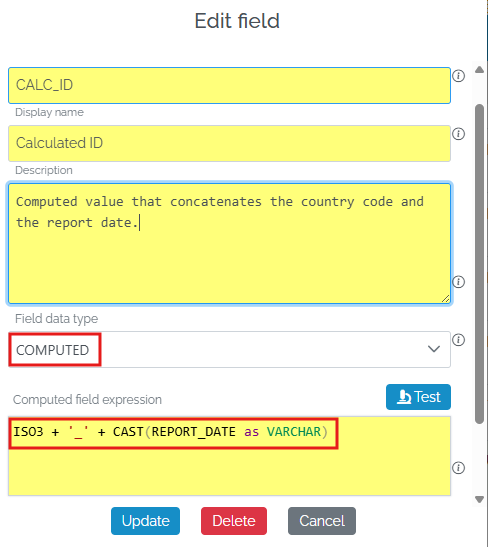
It’s also generally easier to make a few changes to existing data models than the gridview editor or the export-import way.
Click the new Edit Model button to activate the new UI:
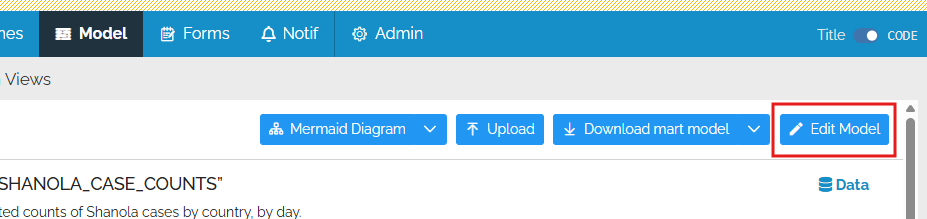
Brief documentation is available in the Edit Model Via UI article
Confirm deletion of records upon manual Commit
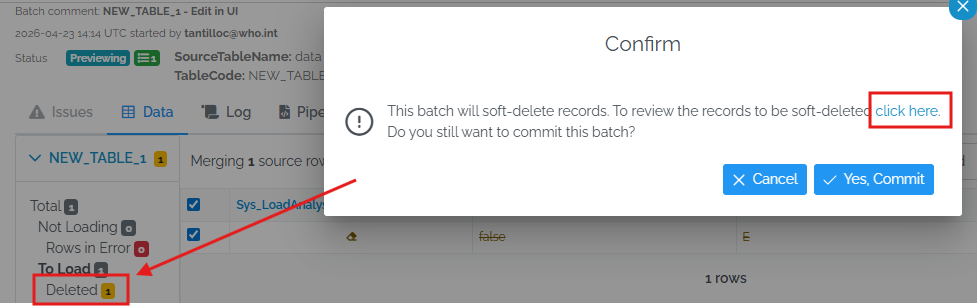
For people interactively uploading data, a new confirmation message box is now displayed when the Commit button is pressed if the batch includes any deleted (soft) records. A link in the message box can be followed to view the records flagged for deletion.
Set table/view as favorite from data view page
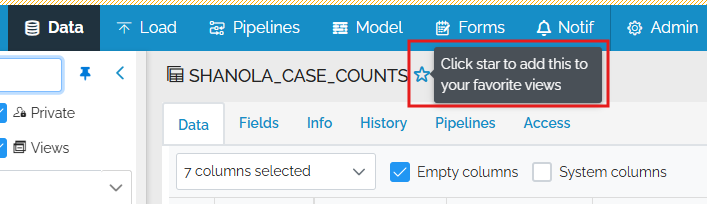
A table or view can be “starred” as a favorite on the data view page.
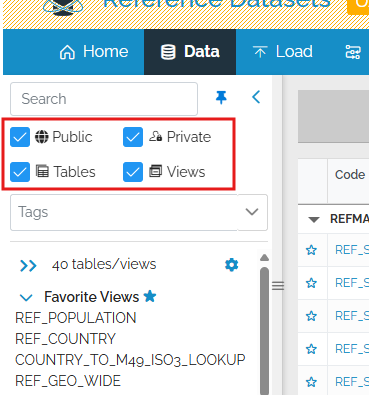
Tweaks to object browser search
Based on user-feedback, the filters are easier to get to in the “object browser” - one less click.
FileNameToColumn option
For Get* commands which extract a file (GetText, GetExcel, GetZip, GetAccess, GetFtpFile, GetWordForm, GetRecFile), a new FileNameToColumn option is available to put the name of the file into a column of the extracted table. The filename can then be treated like data, which can be useful if the file name is the only place where certain data values are available. You might then want to use the SplitColumnByRegEx command to create multiple columns based on the filename, if the filename stores multiple pieces of information.
${UPLOADED_FILE_NAME} variable
A new system variable, ${UPLOADED_FILE_NAME} is available in pipelines. This stores the name of the file uploaded interactively by a person via the UI. Please see the full list of system variables available in pipelines and notes on how to use them.
Other Changes
- #6360 Skip email notification if approver does the commit
- #6347 Update SQL Server grammar to support 2022 features in the Custom view editor
- #6330 Truncating a few tables trigger a full mart view stats recompute
- #6256 Why do these distinct column counts take so long?
- #6288 Set maximum column width in batch history Comment column
- #6153 Refactor mart connection string to support explicit DB Server entity (MART_DATA_STORE)
- #6260 Improve auto tab switching on batch preview page
- #6329 Batch preview column selector not entirely visible
- #6194 Nightly clean-up Mart Deletion error because of left-over _CLONE table
- #6354 Custom view editor: Illegal value for lineNumber
- #6252 Improved ability to delete accounts at sys admin level