
Consume data from SFTP
Data can be extracted from SFTP environments using the GetFTP command. This article describes how to do that using a PuTTY file.
What is SFTP ?
Secure File Transfer Protocol (SFTP) is a network protocol that provides encrypted, reliable file transfer over an SSH (Secure Shell) connection. It protects both the authentication process and the data being transmitted, making it far safer than traditional FTP. SFTP supports operations like uploading, downloading, renaming, and deleting files on remote servers, all while ensuring confidentiality and integrity through strong cryptographic security. It’s widely used for automated data exchanges, system integrations, and secure enterprise workflows.
What is PuTTY?
PuTTY is a lightweight, open‑source SSH and telnet client for Windows that lets you securely connect to remote systems and network devices. It provides a simple interface for establishing encrypted terminal sessions, managing keys, and transferring files through tools like SFTP and SSH. Because it’s portable, fast, and highly configurable, PuTTY has become a go‑to utility for developers, administrators, and anyone who needs reliable remote command‑line access.
What is a PuTTY file?
A PuTTY file is any file generated or used by the PuTTY toolset to support secure remote connections, most commonly a private key file created with PuTTYgen. These files typically use extensions like .ppk and store SSH authentication keys in PuTTY’s own format, allowing users to connect securely to remote servers without passwords. PuTTY files can also include saved session configurations, host keys, and other connection settings that help automate or streamline secure access.
This is an example of what one looks like

Install PuTTYgen
What is PuTTYgen?
PuTTYgen is a small companion utility to PuTTY that’s used to generate, convert, and manage SSH key pairs for secure authentication. It creates private keys in PuTTY’s .ppk format and can also export keys to OpenSSH or other formats when needed. Because SSH keys provide stronger, more secure access than passwords, PuTTYgen is an essential tool for anyone setting up encrypted remote connections or automating server access.
PuTTYgen Download
PuTTY can be downloaded from this link
Run PuTTYgen
To run it, go to the app list and select PuTTYgen (not PuTTY they are different)

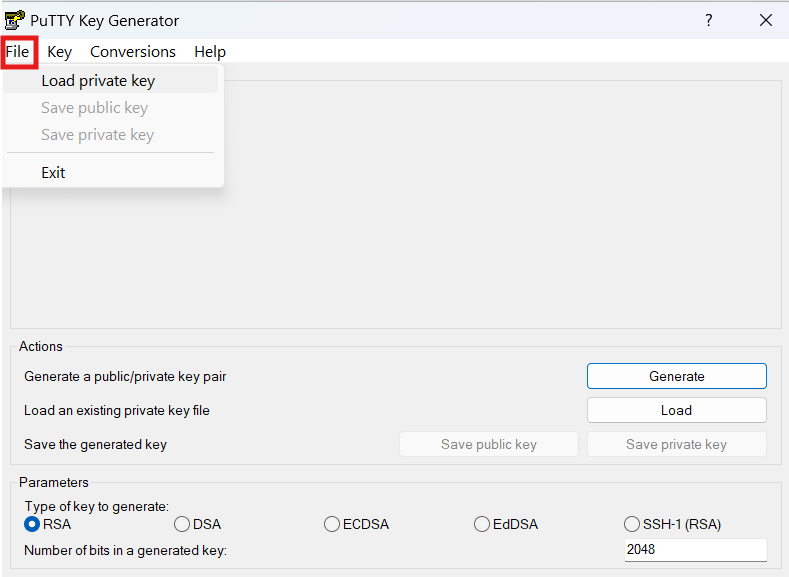
Load key file
Go to Files and then Load Private Key
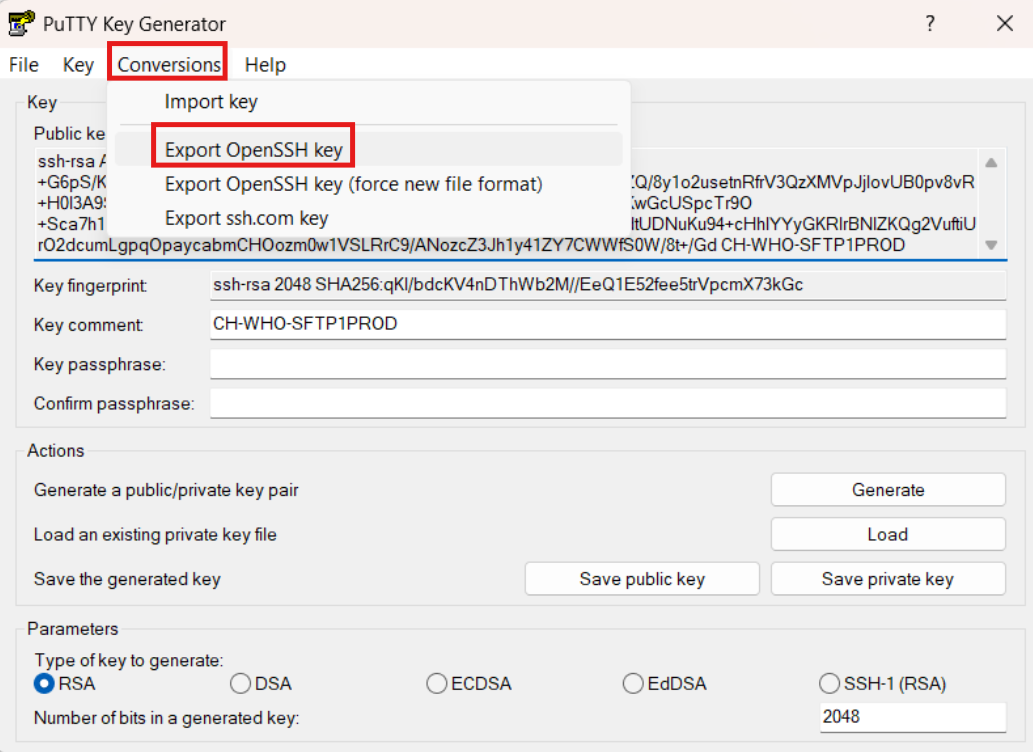
Export the file to SSH Key
On the Conversion menu, select Export OpenSSH key
Add the key to xMart Connections
Open the key file and copy the contents ignoring the tags —–BEGIN RSA PRIVATE KEY—– and —–END RSA PRIVATE KEY—–
Create a new FTP connection and paste the contents of the key in the Password or Private Key field

The connection can now be used in a pipeline
  <Extract>
    <GetFtpFile Url="sftp://eusend-sftp.eusfx.ec.europa.eu:2222/archived/HCSHA_2011MET_A_AT_2024_V0001_1634546.zip" TableName="Data" ConnectionName="STPConnection">
      <GetZip FileNameToExtractPattern="xlsx$">
        <GetExcel TableName="I. Data sources" OutputTableName="Data"   StartingRow="6" />
      </GetZip>
    </GetFtpFile>
  </Extract>