
Computed Field Type
There is a type of field which is a computed value based on other columns in the current table and to read values from related Foreign Key tables. They use the SQL syntax and are designed to reduce the need for custom views. They are recalculated each time the table is viewed.
In summary:
- Calculate a value based on other columns in the same table. For example, the expression “ISO3 + ‘_’ + YEAR” to produce values like “ARG_2005” based on ISO3 and YEAR columns.
- Calcuate a value based on common SQL functions like YEAR(), DATEDIFF(), or GETDATE().
- Include a value from a related foreign key (FK) table. For example, if your table has a COUNTRY_FK field which is a foreign key to a REF_COUNTRY table containing a WHO_REGION column, you can make the WHO_REGION value appear in your table with the expression “COUNTRY_FK.WHO_REGION”.
- They cannot be overwritten as they are read only.
- The maximum length of the SQL statement is 4000 characters.
Include Foreign Key Table Values
If, for example, you would like the country region to be displayed alongside the country, you can add it as a field as if it were in the table without having to store it in the table. It is read from the Foreign Key table and so is dynamic.
You do this by using the Foreign Key column name then the Foreign Key column name.
In this case, the Fact table has a Foreign Key called COUNTRY_FK which references REF_COUNTRY.
So do get the region we might use COUNTRY_FK.REGION

Calculated Fields
As well as the ability to read fields, the full use of SQL commands as if they were on the line of a SQL SELECT statement.
This means that you can do simple operations like addition or joining text together to make codes.
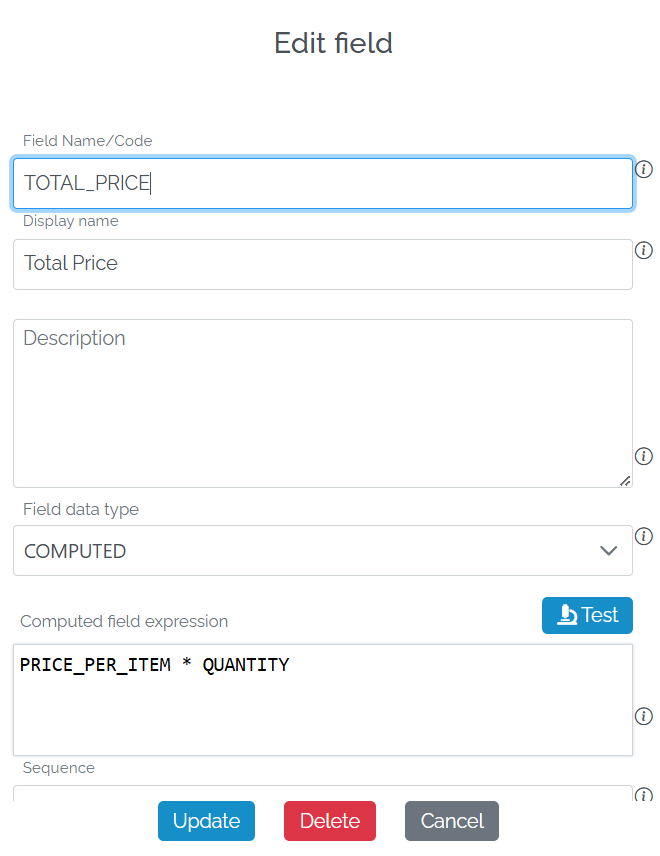
If, for example, I had a table representing a shopping basket with item price and quantity, I could get the total price by mutiplying them together
Test a Computed field
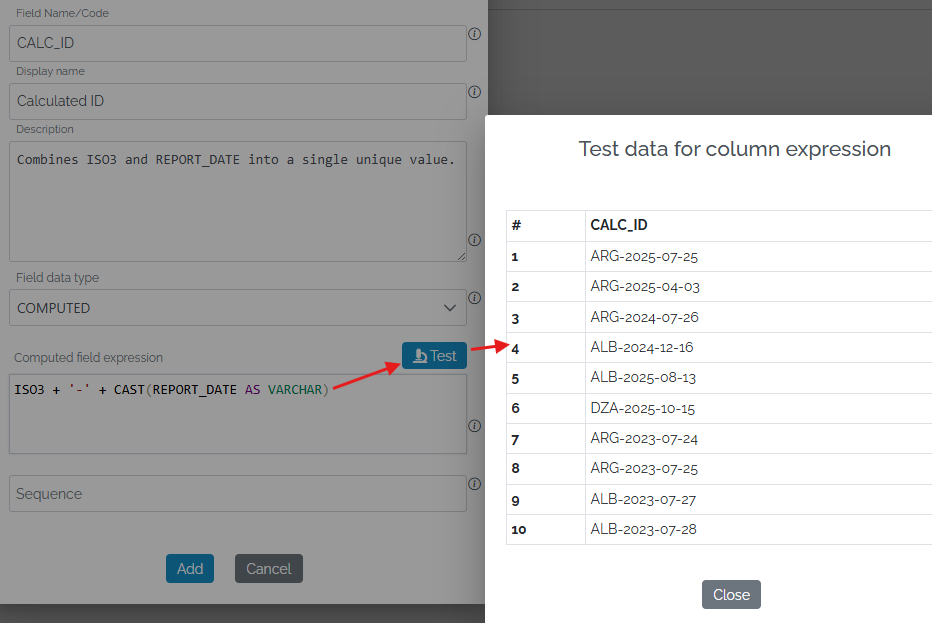
Press the Test button above the expression to test it:
Displaying the contents of a Computed field
If a table is selected in the Data Model page, there is a list of fields displayed. The Computed fields have a small i next to them. By hovering over it, the formula is displayed.

Exporting Computed Fields
Computed fields can be exported in the normal way. The fields are exported as values so do not change if one of the source columns is changed.
Importing Computed Fields
Computed fields will not be imported; computed fields are ignored in the Upload. They are recalculated automatically when the data is read.