
FilesFrom* Commands
This article describes the ability in a flow pipeline to retrieve multiple files from a remote file repository or multiple pages of data from a remote web service, and process them. This is useful when a remote web service does not stream data in a single http request or when the remote data is so large (ie > 2 million rows) that it can’t be processed in a single batch.
To do this, use one of these FilesFrom commands in a flow pipeline:
- FilesFromWebService: loop over multiple pages of data from a remote web service
- FilesFromZip: process all files matching a pattern in a zip file
- FilesFromSharePoint: process all files matching a pattern in a SharePoint or OneDrive folder
- FilesFromFtp: process all files matching a pattern in a remote FTP or SFTP folder.
FilesFrom* Basics
All FilesFrom commands follow a similar logic and behavior.
They retrieve a list of files and pass them, one at at time, to a normal pipeline. The normal pipeline creates a single batch to process the file. The flow batch encapsulates all of the normal batches.
This way, the flow and normal pipelines have different responsabilities. The flow pipeline loops and retrieves files and deals with the connection peculiarities of the data source (web service, zip, sharepoint, ftp, etc.). The normal pipeline focuses on processing the file handed to it using simple commands like GetExcel, GetText, GetJson or GetZip.
Synchronization Modes
By default, FilesFrom commands behave in a “synchronization” manner. Only new or modified files, since the last run of the FilesFrom command, are handed off to the normal pipeline for processing. At the flow level, a file is determined to be new or modified by comparing characteristics of the file last time it was processed. The system internally keeps track of these characteristics: remote modified timestamp, file size, and/or checksum.
By scheduling such a flow pipeline with FilesFrom commands you can efficiently “synchronize” a remote folder, even if the remote folder has hundreds or thousands of files, without repeatedly procesing the same, unchanged files.
You can turn off syncronization behavior and force all files to be processed by setting the Sync setting to ALL instead of AUTO (default). To minimize load on the system, please set it back to AUTO, to prevent re-processing unchanged files.
Sequence
Sequence is irrelevant for FilesFromWebservice, which creates and processes files based on looping but for all other FilesFrom commands Sequence dictates the order in which files are processed.
The availabe options for the Sequence are:
| Value of Sequence | Description |
|---|---|
| Any | The sequence does not matter. |
| Filename | Ascending by filename. |
| FileName Desc | Descending by filename. |
| ModifiedDate | Ascending by remote modified date. |
| ModifiedDate Desc | Descending by remote modified date. |
Here is an example of files being processed by Filename in ascending order:
FilesFromWebService
General Info
The FilesFromWebService command loops through paged web service data, creates 1 file per data page (ie for each http response body) and passes that to a normal pipeline, which creates a batch to process the file.
Details:
- Must contain one single RunPipeline command which runs the “child” pipeline that receives the file created by FilesFromWebService. The origin of RunPipeline must be a Normal type of pipeline.
- Like GetWebService, it is configured with Connection (if secure), Headers and Body.
- Unlike GetWebService, it does not have internal GetJson, GetText, GetExcel, etc. commands because they should be placed in the child pipeline.
- Currently only supports json web services (not xml or csv)
- Must contain one single LoopBy* element, corresponding to the LoopBy type (ie looping scenario).
Please see the pipeline script guide for the description of each property FilesFromWebService command
LoopBy Types (scenarios)
The most common patterns of modern data web services are supported using one of three looping scenarios:
- LoopByInteger, incrementing a page number or skipping a certain number of rows
- LoopByNextUrl, obtaining the url to the next page of data from a json property or http header of the response
- LoopByNextText, obtaining the next continuation token or cursor from a json property or http header of the response
Loop Variables
Pre-defined loop variables (place-holders) are defined for each scenario and need to be placed in appropriate areas inside the FilesFromWebService command, depending upon the requirements of the remote web service. They always start with LOOP and have this syntax: {{L00P_*}}. They are replaced during looping by the system with updated values for each iteration.
They can be placed:
- In the Url attribute of FilesFromWebService
- Anywhere in the Headers element
- Anywhere in the Body element
- Not currently supported: Anywhere in the RunPipeline element
Termination Conditions
- An end condition specific to a looping scenario is reached
- The remote web service returns a non-200 code (not OK).
- System iteration limit is reached, which is currently 200 iterations.
Sequence of sub-elements
The subelements of FilesFromWebService must be listed in the following order (otherwise an “Invalid element” error will result):
- Headers (optional)
- Body (optional)
- LoopBy*
- RunPipeline
LoopByInteger
Description
Loop by incrementing an integer value until an end value is reached or there is no more data. Decrementing loops are supported if Increment is negative.
Command Properties
- StartValue (optional, default = 1), starting value of
{{LOOP_VALUE}} - Increment (optional, default = 1), constant value of
{{LOOP_INCREMENT}} - EndValue (optional, default = null), final value of
{{LOOP_VALUE}}. - DataPath (optional, default=””), json path to the data in the web service http response.
Loop Variables
Place these variables in the appropriate place of the FilesFromWebService command (Url, Body, Header)
- {{LOOP_VALUE}}, the current loop value taking into account the start value, iteration index and increment
- {{LOOP_INCREMENT}}, looping increment (always the same as the Increment property and doesn’t change)
Command Validation
- Either EndValue or DataPath must be defined.
Loop Termination Conditions
- If EndValue is defined: When EndValue is exceeded. The page corresponding to EndValue is the last page processed.
- If DataPath is defined: When there is no more data (empty array, null, undefined, etc.)
- If both EndValue and DataPath are defined: whichever comes first.
Examples
Each of these FilesFromWebService examples run a pipeline origin called ONE_PAGE_OF_JSON. This pipeline would need to be customized for the particular json returned by the remote web service (ie add transforms, adjust GetJson path, change the target table).
ONE_PAGE_OF_JSON normal pipeline (illustrative)
<XmartPipeline>
  <Extract>
    <GetJson OutputTableName="data">
      <Path>$.value</Path>
    </GetJson>
  </Extract>
  <Load>
    <LoadTable SourceTable="data" TargetTable="the_target_table" LoadStrategy="MERGE">
      <ColumnMappings Auto="true">
      </ColumnMappings>
    </LoadTable>
  </Load>
</XmartPipeline>
OData $Skip and $Top
Pull REFMART REF_DATES data 10,000 rows at a time using $top and $skip until there is no more data found in the json object found at json path “$.value”.
<XmartPipeline>
<Flow>
<FilesFromWebService
Url="https://xmart-api-public.who.int/REFMART/REF_DATES?$orderby=Sys_PK&$top={{LOOP_INCREMENT}}&$skip={{LOOP_VALUE}}&excludeSysColumns=1">
<LoopByInteger StartValue="0" Increment="10000" DataPath="$.value" />
<RunPipeline OriginCode="ONE_PAGE_OF_JSON" />
</FilesFromWebService>
</Flow>
</XmartPipeline>
Page Number in Url
Increment a page number in the url (starting with page 1) and stop when there is no more data in the json object found at json path “$.data”.
<XmartPipeline>
  <Flow>
    <FilesFromWebService Url="https://data.world.int/items?page={{LOOP_VALUE}}&pageSize=100">
        <LoopByInteger StartValue="1" DataPath="$.data" />
        <RunPipeline OriginCode="ONE_PAGE_OF_JSON">
      </FilesFromWebService>
    </Flow>
</XmartPipeline>
Page Number in Body
Pull data from a remote API which requires page number to be defined in the http request body rather than the url. Also define Content-Type as required by the remote web service.
<XmartPipeline>
  <Flow>
    <FilesFromWebService Url="https://healthaccounts-test.who.int/hapt/HealthExpenditure">
      <Headers>
          <add Name="Content-Type" Value="application/json" />
      </Headers>
      <Body Type="raw">
        {
          "pageNumber": {{LOOP_VALUE}}
        }
      </Body>
      <LoopByInteger StartValue="1" DataPath="$.data" />
      <RunPipeline OriginCode="ONE_PAGE_OF_JSON">
    </FilesFromWebService>
  </Flow>
</XmartPipeline>
LoopByNextUrl
Description
Loop by obtaining the url of the next page of data from a json property or http header of the web service response.
Loop Variables
LoopByNextUrl does not use loop variables. It will replace the entire value of the Url property of the FilesFromWebSerice command.
Command Properties
Only one of these properties should be defined.
- NextUrlPath, json path to the property in the http response containing the Url of the next page of data.
- NextUrlHeader, name of the http response header containg the Url of the next page of data.
Command Validation
- Either NextUrlPath or NextUrlHeader must be defined.
Loop Termination Conditions
- The remote web service stops providing the next url.
Examples
Next Url as json property (OData)
When an OData reaches its row limit for a page, it provides a Url to the next page of data as a json property.

<XmartPipeline>
<Flow>
<FilesFromWebService Url="https://xmart-api-public-uat.who.int/REFMART/REF_DATES?excludeSysColumns=1&$orderby=Sys_PK">
<LoopByNextUrl NextUrlPath="$['@odata.nextLink']" />
<RunPipeline OriginCode="ONE_PAGE_OF_JSON" />
</FilesFromWebService>
</Flow>
</XmartPipeline>
LoopByNextText
Description
Loop by obtaining the next text required to load the next page of data from a json property or http header of the web service response. This is used by APIs which require continuation tokens or cursors.
Loop Variables
Place these variables in the appropriate place of the FilesFromWebService command (Url, Body, Header)
- {{LOOP_TEXT}}, the current text value
Command Properties
Only one of these properties should be defined.
- NextTextPath, json path to the property in the http response containing the next text.
- NextTextHeader, name of the http response header containg the next text.
Command Validation
- Either NextTextPath or NextTextHeader must be defined.
Loop Termination Conditions
- The remote web service stops providing the next text.
Examples
Next Text as json property
Example LoopByNextText for Cursor or Continuation Token in response json path.
<XmartPipeline>
  <Flow>
    <FilesFromWebService ConnectionName="CONN_NAME" Url="http://example.api.com/items?continuationToken={{LOOP_TEXT}}">
        <LoopByNextText NextTextPath="$.nextToken" />
        <RunPipeline OriginCode="ONE_PAGE_OF_JSON">
      </FilesFromWebService>
    </Flow>
</XmartPipeline>
Next Text as http header
Example LoopByNextText for Cursor or Continuation Token in response http header.
<XmartPipeline>
  <Flow>
    <FilesFromWebService ConnectionName="CONN_NAME" Url="http://...../items?continuationToken={{LOOP_TEXT}}">
        <LoopByNextText NextTextHeader="Continuation-Token" />
        <RunPipeline OriginCode="ONE_PAGE_OF_JSON">
      </FilesFromWebService>
      </Flow>
</XmartPipeline>
FilesFromZip
Below is an example of the FilesFromZip command used in a flow pipeline. FilesFromZip will generate one batch for each file in the zip which matches the FileNameToExtractPattern, by calling the pipeline with origin PIPE_ZIP. The zip file is treated like a remote file repository; the system will remember and compare the file timestamp and size of each processed file and skip processing next time if the file has not changed.
<XmartPipeline>
  <Flow Mode="PARALLEL">
    <FilesFromZip FileNameToExtractPattern="^country_demo\d+\.xlsx">
      <RunPipeline OriginCode="PIPE_ZIP"/>
    </FilesFromZip>
  </Flow>
</XmartPipeline>
And here is the section of the normal pipeline with origin PIPE_ZIP in this case. It will receive a single excel file as extracted by the FilesFromZip in the flow pipeline.
<XmartPipeline>
  <Extract>
      <GetExcel TableName="*"   OutputTableName="data" StartingRow="1"/>
  </Extract>
  <Load>
    <LoadTable SourceTable="data" TargetTable="FACT_COUNTRY_DEMO" LoadStrategy="MERGE">
      <ColumnMappings Auto="true"/>
    </LoadTable>
  </Load>
</XmartPipeline>
In this case, 2 files were found in the zip when the flow pipeline was executed. Both files were previously loaded and had not changed since the last upload. In the Status column “already synced” is displayed.

Below, we have modified one of the two files (country_demo2.xlsx) and re-ran the above pipeline. The changed file is reprocessed with 12 changes indicated.
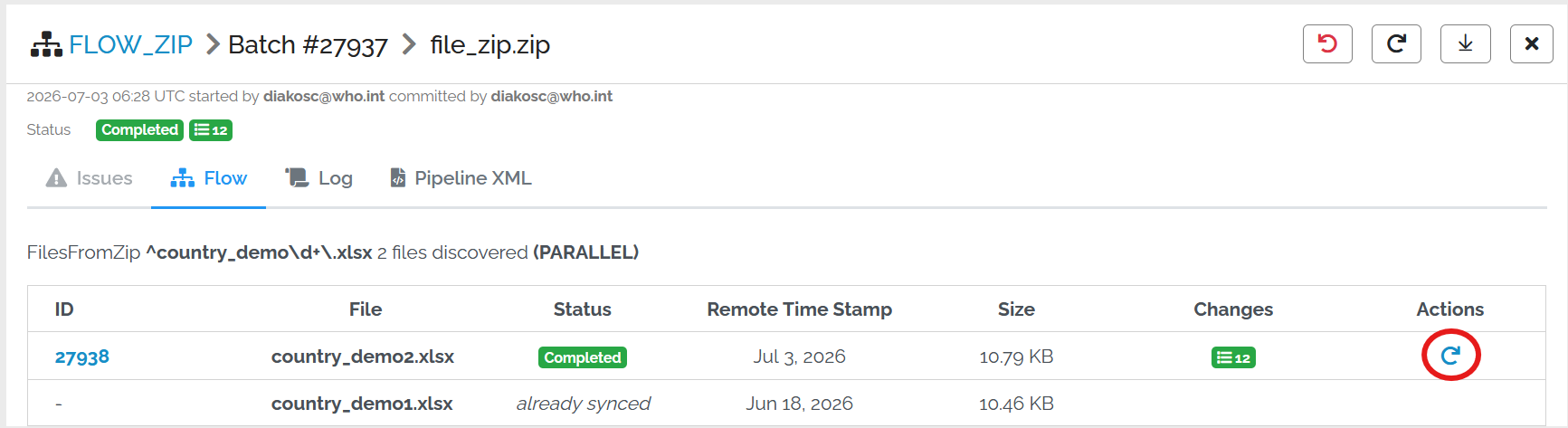
Also, under actions you may reprocess only the file(s) with the changes, like you would do for the entire batch, by clicking the arrow under the Actions column.
For the full details of this command, please see the pipeline script guide for the FilesFromZIP
FilesFromSharePoint
Here is an example of the FilesFromSharePoint command. Below you can see the flow pipeline which creates a connection with a SharePoint file repository and then, for each file matching the FileNamePattern, launches the LOAD_HAQ origin. In this example only new or files modified since the last remote modified timestamp of the file will be processed because the Sync attribute is not specified and so defaults to “Auto”. Because of the FileNamePattern, it only gets files ending with xlsx and processes them in FileName order (Sequence parameter).
<XmartPipeline>
  <Flow Mode="SEQUENTIAL">
    <FilesFromSharePoint SiteUrl="https://worldhealthorg.sharepoint.com/sites/xMartSupportTeam" FolderPath="Shared%20Documents/General/Archives/FilesFromSharePoint%20Test/" FileNamePattern=".*[.]xlsx" Sequence="FileName" ConnectionName="FilesFromSharePoint" IncludeSubFolders="false" >
        <RunPipeline OriginCode="LOAD_HAQ" />
    </FilesFromSharePoint>
  </Flow>
</XmartPipeline>
Set up a Connection
In order use the command, it is necessary to set up a SharePoint connection. This needs to be done by someone with access to the SharePoint page.
Find SiteUrl and FolderPath
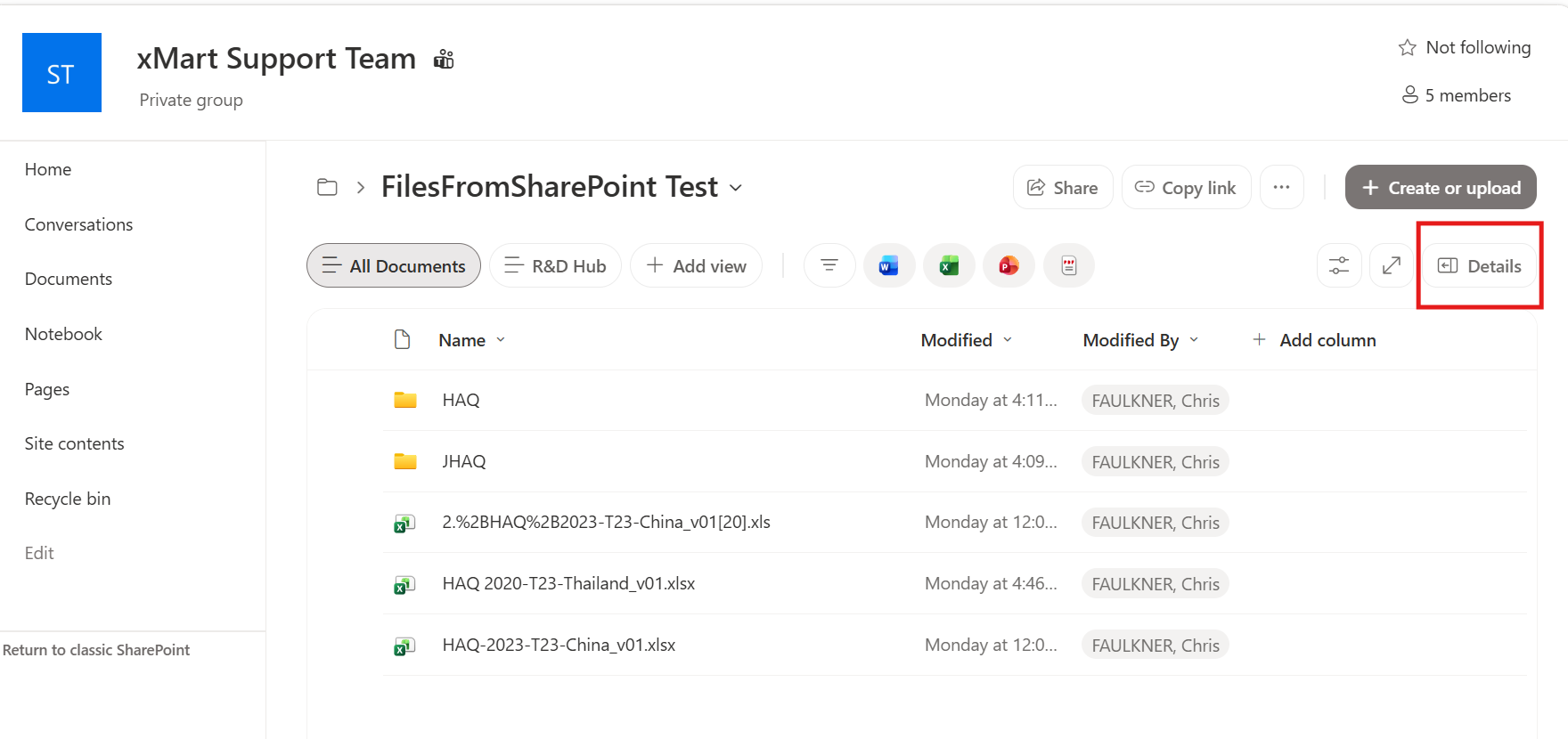
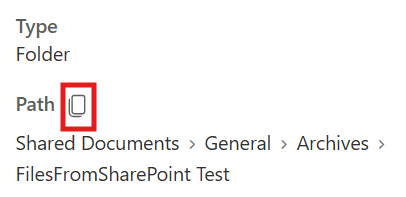
Go to the SharePoint site, and click on Details button to bring up the Details pane.
In the details pattern in the folder path
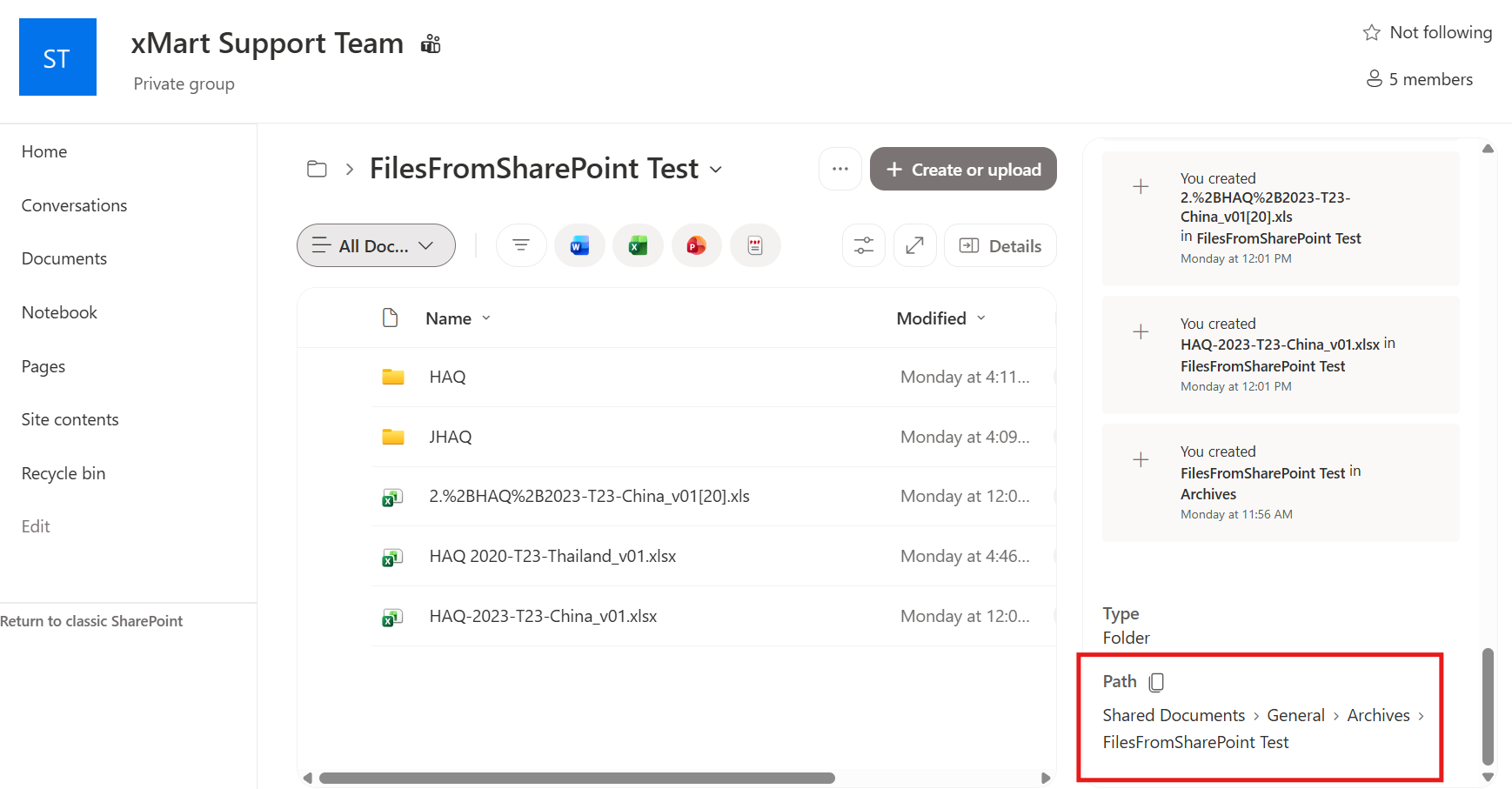
Copy this and put it into the FolderPath parameter. In this case, the value is starts at Shared Documents
Copy the direct link URL
In this case, the value is
https://worldhealthorg.sharepoint.com/sites/xMartSupportTeam/Shared%20Documents/General/Archives/FilesFromSharePoint%20Test
Knowing that the Folder Path starts at Shared Documents, the Site URL must be all of the URL before that.
So SiteUrl is
https://worldhealthorg.sharepoint.com/sites/xMartSupportTeam
And FolderPath is
Shared%20Documents/General/Archives/FilesFromSharePoint%20Test
FileNamePattern
The FileNamePattern is a RegEx pattern.
There are many RegEx language references available such as this one: http://regexstorm.net/reference
There is also a page to test the expression: http://regexstorm.net/tester
IncludeSubFolders
In SharePoint, a site can have subfolders which can also have subfolders. In order to read data from these, set IncludeSubFolders=”true”. The default value is “false” so if this parameter is omitted, only the path specified will be read.
Mode
There are two modes available.
PARALLEL processed all of the files at the same time and, if the batch has been run in Commit mode, commits them when the data has been processed.
SEQUENTIAL processes the files one after another. The order can be set by using the Sync setting.
Snyc
This specifies how the files are processed. It is best used with SEQUENTIAL mode. There are 2 options.
AUTO
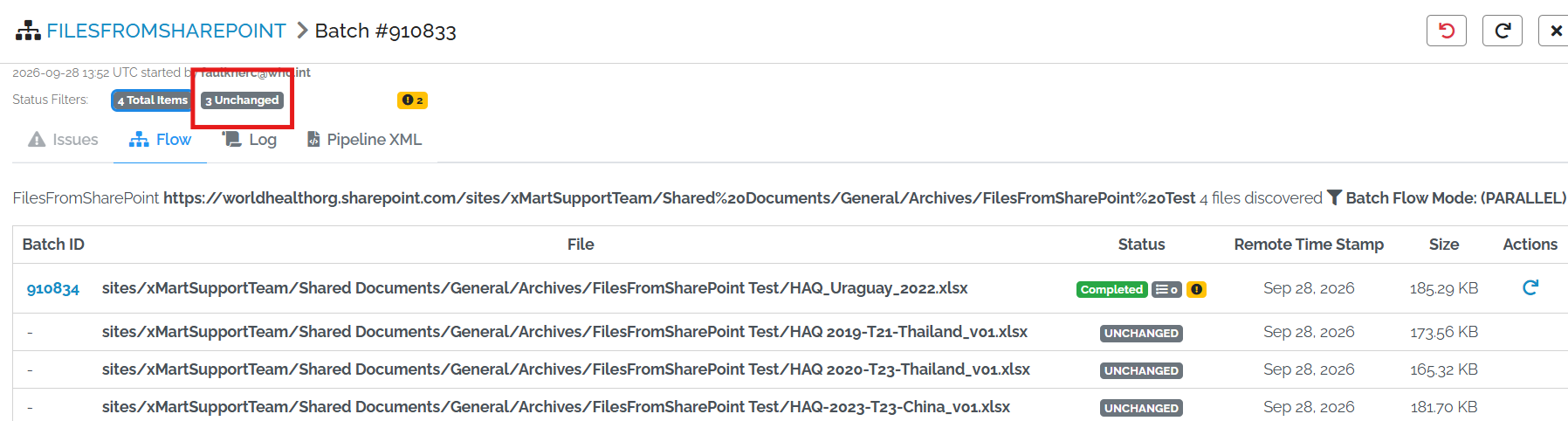
Only load files which have changed since the last time they were processed. Changed is defined as having a different Modified Date or containing different data.
In Auto mode, files which are not processed are displayed as UNCHANGED. In the batch changes summary, the total number of unchanged files is shown
ALL
Load all files regardless of whether or not they have changed
Sequence
In some cases, many versions of files are stored on SharePoint. For this reason, there is a sequence parameter to determine the order in which they are processed.
| Value of Sequence | Description |
|---|---|
| Any | The sequence does not matter. |
| Filename | Ascending by filename. |
| FileName Desc | Descending by filename. |
| ModifiedDate | Ascending by remote modified date. |
| ModifiedDate Desc | Descending by remote modified date. |
This order applies across all of the files read including ones from subfolders and subfolders of subfolders.
FilesFromFtp
Here is an example of the FilesFromFtp command. Below you may see the flow pipeline which creates a connection with a remote SFTP file repository and then, for each file matching the FileNamePattern, launches the LOAD_HAQ_ZIP origin. In this example only new or files modified since the last remote modified timestamp of the file will be processed because the Sync attribute is not specified and defaulting to “Auto”.
<XmartPipeline>
  <!-- Flow mode: PARALLEL (default) or SEQUENTIAL -->
  <Flow Mode="SEQUENTIAL">
    <FilesFromFtp Url="sftp://eusend-sftp.eusfx.ec.europa.eu:2222/toUser/"
                  FileNamePattern="^HCSHA_2011NAT_A_BE_20\d\d_.+\.zip$"
                  ConnectionName="eDamis"
                  Sequence="FileName" >
      <RunPipeline OriginCode="LOAD_HAQ_ZIP" />
    </FilesFromFtp>
  </Flow>
</XmartPipeline>
Here is the section of the normal pipeline with origin LOAD_HAQ_ZIP. Since we are expecting to retrieve zip files from the ftp server, the GetZip command is being used to process a single zip file handed to it from the flow pipeline. Since the zip contains a single excel file, the GetExcel command is being used to process the excel file:
<XmartPipeline>
  <Extract>
  <GetZip FileNameToExtractPattern="xlsm" Origins="LOAD_HAQ_ZIP" >
    <GetExcel TableName="*" FindStartingRow="SHA"
              RemoveBlankRows="false" RemoveBlankCols="false"
              TableTypes="Worksheets" TrimValues="true" RepeatMergedCellsValue="true"
              StrictTypes="true" />
  </GetZip>
  </Extract>
  <Transform>
    <MergeTables TableNames="*" SkipTableNames="General,SourceSystem" MergedTableName="data"
                 KeepTables="false" />
    <CopyTable TableName="data" Columns="DCSourceTable" OutputTableName="CatCheck" />
    <SetContext ActiveTables="CatCheck" />
    <CleanTable RemoveBlankRows="true" RemoveBlankColumns="true" TrimValues="true" />
    <RemoveDuplicates />
  <!-- In the actual pipeline more transformation is taking place which is removed for this example-->
  </Transform>
  <Load>
    <LoadTable SourceTable="raw_dms_survey" TargetTable="FACT_DMS_SURVEY" LoadStrategy="MERGE" >
      <Transform>
   <!-- In the actual pipeline more transformation is taking place which is removed for this example-->
        <CleanTable RemoveBlankColumns="false" RemoveBlankRows="true" TrimValues="true" />
	  </Transform>
      <ColumnMappings Auto="true" />
    </LoadTable>
  </Load>
</XmartPipeline>
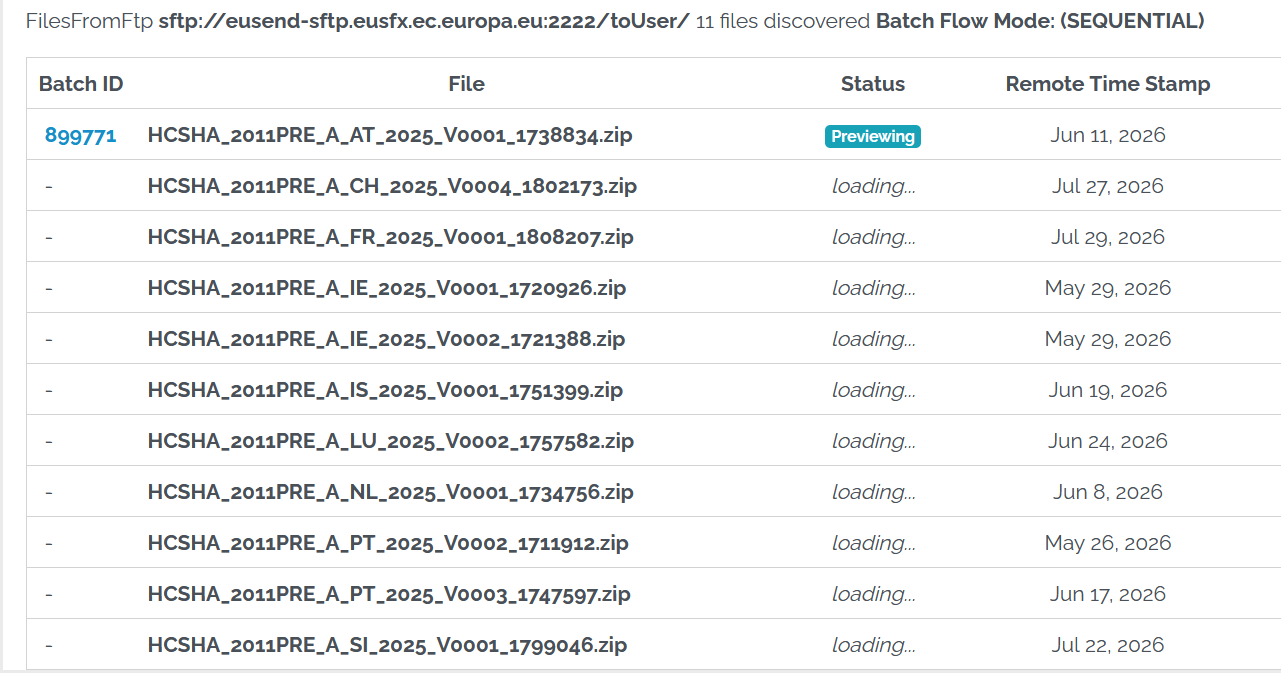
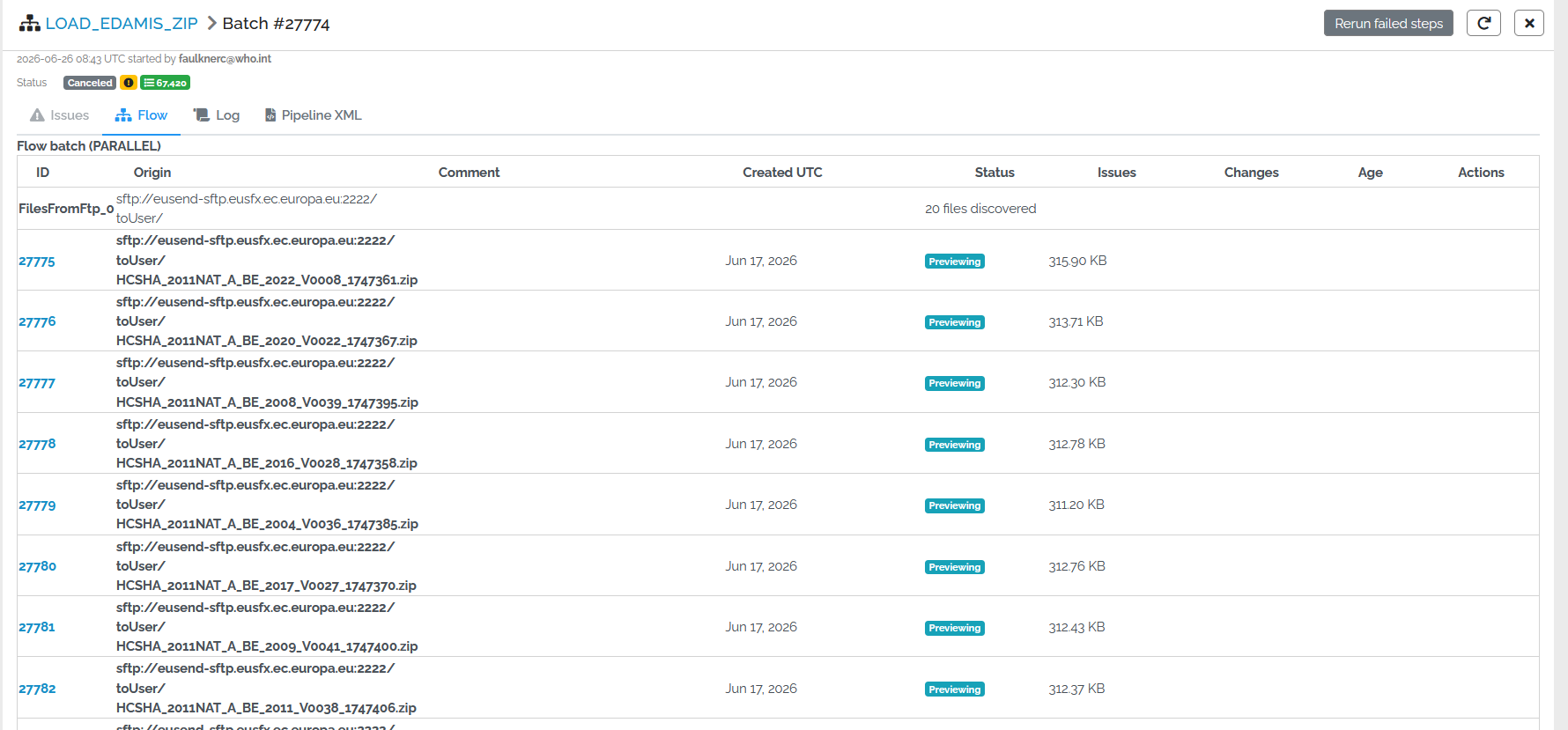
In this case, 20 files were located when the flow pipeline was executed, so as expected a pipeline chain was created:
For the full details of this command, please see the pipeline script guide for the FilesFromFTP command.